
Our guide gives you a practical way to check condition, software compatibility, payment security and seller support before committing. Test the equipment against the work your checkout actually needs to do, not just whether it powers on.
Key Takeaways
| Question | What to check |
|---|---|
| What is a POS terminal? | It is usually the computer or register running checkout software. Payment devices and peripherals are separate components. |
| Will your software run on it? | Match the POS application’s hardware requirements and supported operating systems to the terminal, and check that the operating system receives security updates. |
| How do you test a used touchscreen POS? | Test touch response across the display, connect the peripherals you use, check network connections, and restart the system with everything attached. |
| Is the payment terminal ready for your business? | Ask your acquiring bank or payment provider to confirm approval for your merchant account and identify any account or device restrictions. |
| What refurbishment proof should you request? | Ask for unit-specific service records, a clear warranty and return process, and details of the functional tests performed. |
| What makes a fair comparison with new equipment? | Weigh purchase price against repair, downtime and replacement risks. For a design reference, compare the offer with these commercial touchscreen POS terminal configurations. |
Know Which Part of the POS Setup You’re Buying
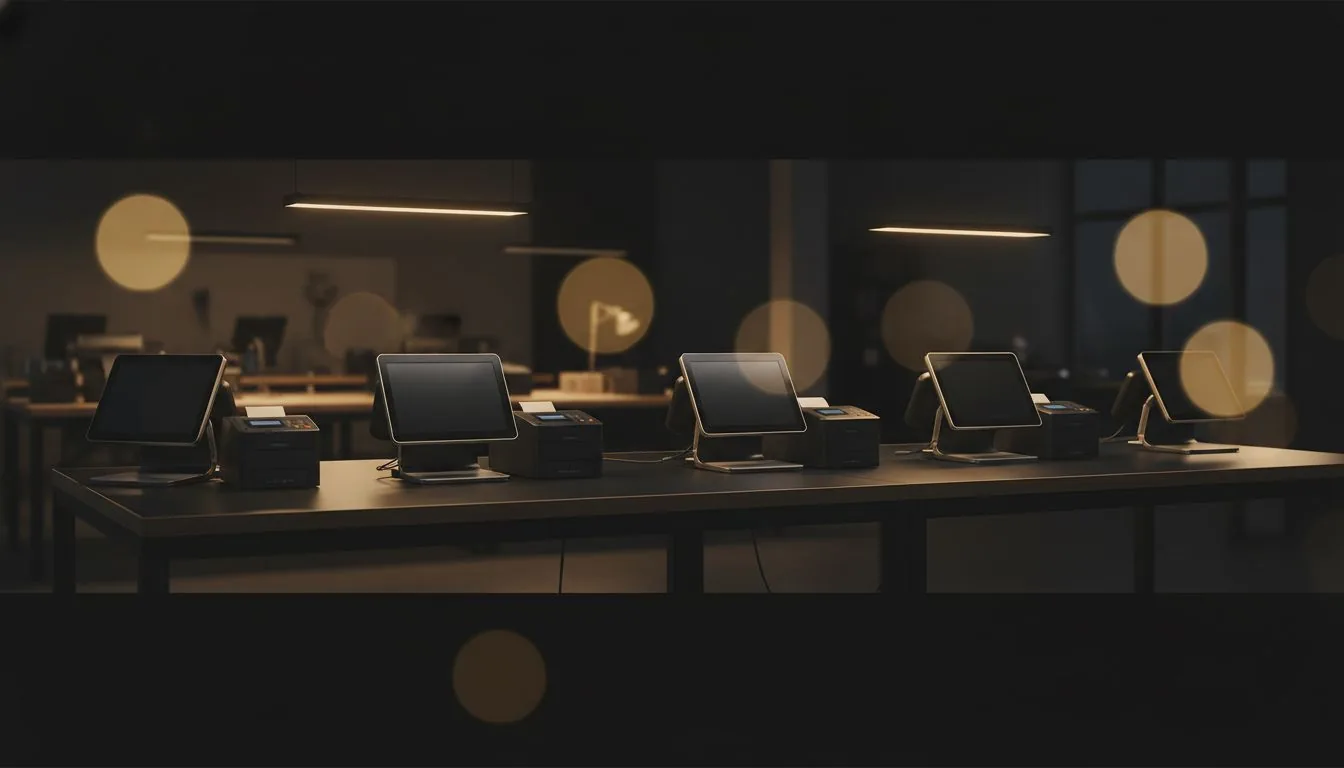
A POS terminal is typically the computer or register that runs checkout software. A payment terminal handles card transactions, while a receipt printer, barcode scanner and cash drawer are separate peripherals.
Write down the functions your business needs before judging a refurbished POS terminal. Include tasks such as recording sales, looking up stock, scanning products, printing receipts and opening a cash drawer, because the full setup must cover each job.
A POS hardware setup for retail and hospitality can combine a terminal with peripherals, but the devices still need to work together. Think of the complete point-of-sale system as compatible hardware, POS software and payment services, not as interchangeable names for one machine.
Verify Software, Operating-System Support and Security
POS software compatibility depends on more than whether the terminal starts up. Match the application’s supported operating systems, processor, memory, storage and hardware requirements to the computer, because an apparently functional device can still fail to run the checkout software reliably.
Check that the installed operating system can still receive security updates. Review the SSD’s condition and available storage as well: failing or nearly full storage can slow checkout, interrupt transactions or prevent routine updates.
Make sure you can reset and administer the terminal yourself. Unknown administrator passwords, firmware locks or device-management enrolment can block setup, software installation and ongoing maintenance.
Before storing customer details or processing payment-related information, use a supported, securely configured system and follow the payment provider’s applicable PCI requirements. Security needs to cover the whole checkout setup, not only the payment device.
Test the Screen, Ports and Connections in Person
Start with a physical inspection of the casing, screen and stand. Test touch response across the entire display, including the edges and the areas staff use most, to catch cracks, dead zones or erratic input that a quick tap in the centre can miss.
Use this acceptance checklist with the actual equipment and software you plan to run:
- Touchscreen: Open menus, select items and enter figures across different areas of the screen.
- Ports: Connect the intended receipt printer, barcode scanner and cash drawer through the available USB ports or other required interfaces.
- Peripherals: Confirm that each device communicates with the POS software and completes its task, such as printing a receipt or scanning an item.
- Network: Test the wired or wireless connection the checkout will rely on, including access to the services your setup needs.
- Restart: Reboot the terminal, then check that it reconnects to the network and recognises its peripherals.
Keep the system running through a representative period of use and watch for freezes, slow responses, unexpected restarts or unusual heat. A brief power-on demonstration does not show how a refurbished POS terminal behaves under sustained checkout activity.
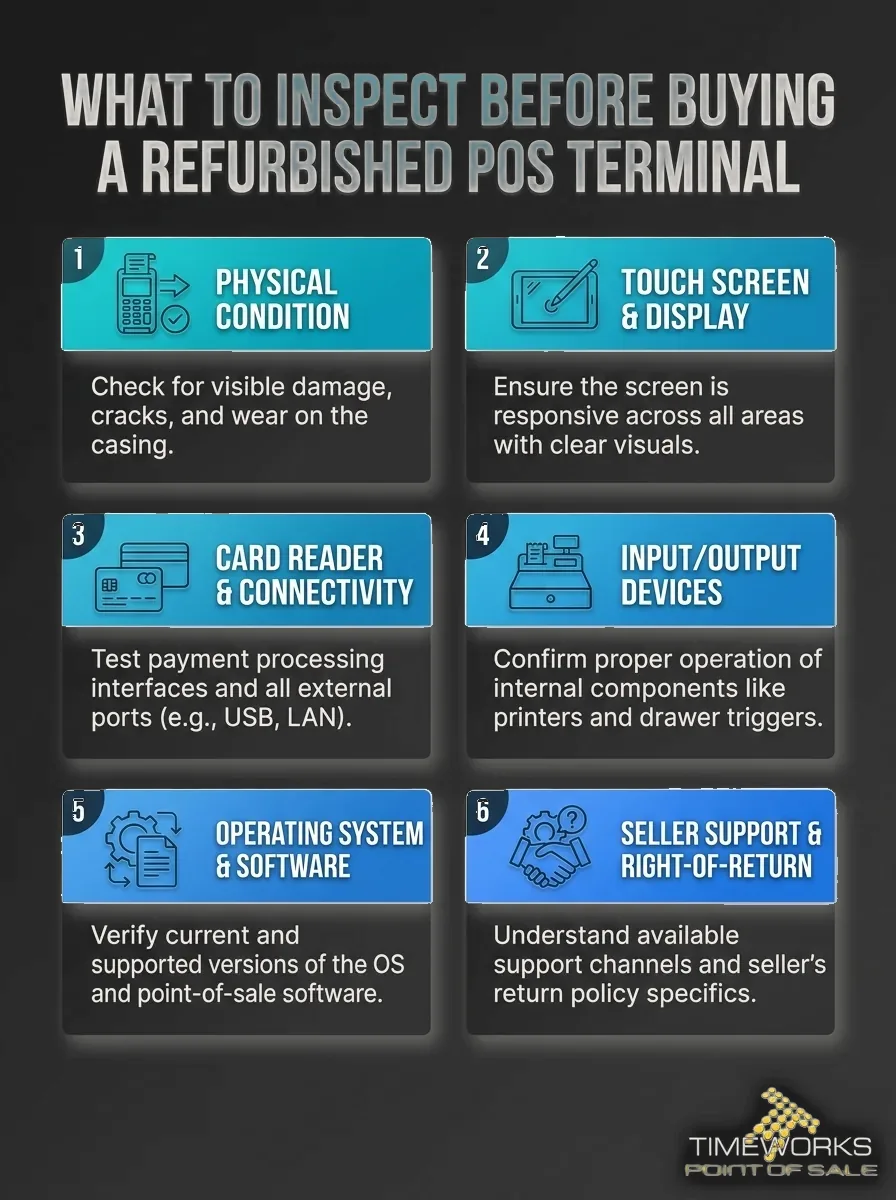
This infographic highlights the key hardware, software, security, and warranty checks to make before buying a refurbished POS terminal.
Confirm Payment Approval and Peripheral Compatibility
Keep the payment terminal separate in your checks from the POS computer. Ask your acquiring bank or payment provider to confirm that the specific payment device is authorised for your merchant account.
Ask whether the payment device is locked, enrolled to another account or restricted in another way. A device can appear to work during a demonstration and still be unusable for a new merchant.
Check both physical connections and software support for each printer, scanner and cash drawer. A matching connector shape does not prove that the device can communicate with your POS setup.
If you cannot establish payment security or provider approval, do not treat a successful test sale as proof that the system is ready for business. Provider authorisation and the correct account setup matter as much as the device’s physical condition.
Ask for Evidence of Refurbishment and Written Protection
Request a refurbishment record tied to the unit’s serial number. It should state the work performed, components replaced and any faults that remain, giving you more useful detail than a general claim that the terminal was tested.
Assess cosmetic condition separately from functional testing. A clean casing does not show whether the touchscreen, ports or storage will perform reliably during trading.
Refurbished POS systems from Timeworks are inspected, cleaned, tested and certified in its Cape Town workshop, pre-tested against Timeworks Quantum POS, and supplied with a parts-and-labour warranty. That process makes the systems relevant to buyers who want refurbishment work and software testing documented as part of the offer.
Read the written warranty and return terms closely. Check which parts and labour are covered, what exclusions apply, how quickly you must report a fault, how repairs are arranged and who pays shipping, because these terms determine how useful the protection will be in practice.
Functional testing and cosmetic grading answer different questions, so ask for evidence of both. A refurbishment record should make it possible to identify the unit and understand what the seller tested, while the warranty explains what happens if a covered fault develops later.
Plan for Power Interruptions, Repairs and Remaining Service Life
Consider the hardware’s age and serviceability, the availability of replacement parts, and whether the operating system and POS software can remain supported for your intended use. These factors help you judge how long the terminal can stay useful, rather than focusing only on its current working condition.
Compare the purchase saving with likely repair, replacement and downtime costs. A cheaper second-hand POS terminal can be a poor fit if a failure would stop essential sales or leave staff without a workable checkout.
For South African trading environments, use suitable surge protection or a UPS where appropriate. Plan a safe way to test how the POS and its peripherals behave after an interruption and restart, especially if load-shedding interruptions are part of your operating conditions.
Decide how checkout will continue during a repair before the terminal is installed. A spare unit or another workable backup process can prevent one equipment fault from stopping sales; rental options provide another route for businesses weighing equipment ownership against repair support.
Choose Refurbished Components According to Their Risk
A refurbished computer or touchscreen can be a sensible purchase when it passes hands-on testing, supports the required POS software and has a credible repair path. These checks matter because the terminal is the hub connecting checkout tasks and peripherals.
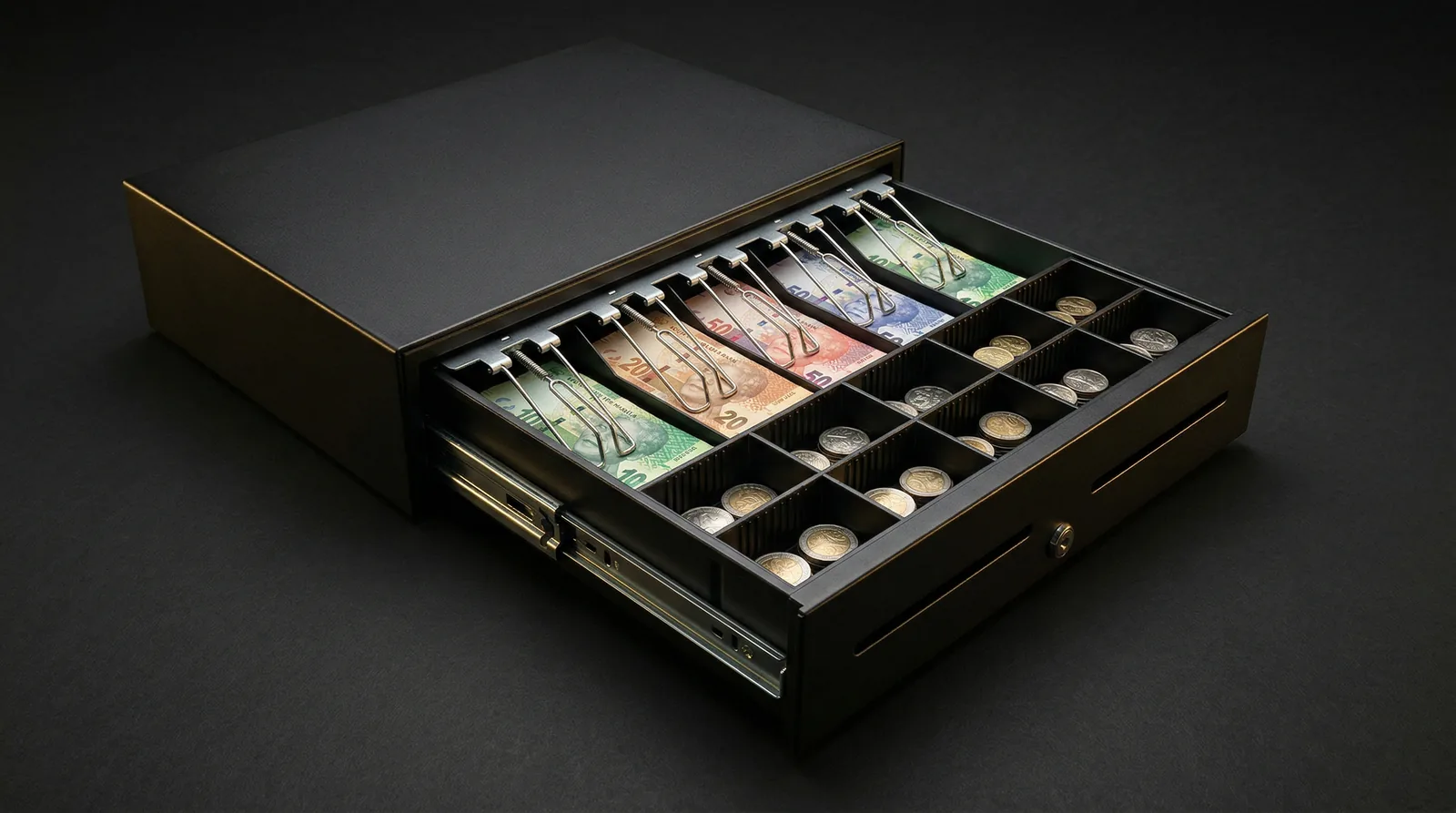
Printers, scanners and cash drawers can also be considered refurbished when their mechanical operation, connections and software compatibility have been tested with the intended setup. Check printer output and cutter operation, scanner response, and whether a cash drawer opens correctly through the checkout workflow.
Apply stricter scrutiny to payment equipment. Provider approval, merchant-account restrictions and security requirements add important checks beyond physical condition.
Compare refurbished and new equipment by total operating risk, not purchase price alone. If one failure would leave your business without a practical way to take sales, reconsider the configuration or ask a POS specialist through Timeworks contact support about a suitable setup.
Frequently Asked Questions
Use a four-hour full-load run as a practical minimum to ask about, then extend testing if your normal trading period runs longer. Timeworks describes component stress testing under full load for at least four hours as part of its refurbishment process.
Some POS software can record cash sales or queue transactions offline, but card processing depends on the software and payment provider’s offline rules. Treat a locally recorded card transaction as pending unless the provider confirms that it has been authorised.
It can be, if its components are designed for the workload and the system remains responsive during the busiest checkout tasks. Test the workflows staff run together, such as stock lookup, scanning and receipt printing, rather than judging suitability from basic sales entry alone.
Record the error message, time and task that triggered the problem, and keep those notes with the unit’s serial number and purchase paperwork. Share that record with the seller or support team before changing system settings, so they can diagnose the original fault more accurately.
An office computer can run checkout software when its operating system, hardware and connections meet the application’s requirements. Consider the physical checkout workflow too, including screen placement, touch use and reliable connections for the peripherals staff need.
Conclusion
Before buying, test the refurbished POS terminal as a complete checkout setup: inspect the screen and ports, verify software and operating-system support, connect the real peripherals, and establish payment-provider approval. Request serial-number-specific refurbishment evidence and written warranty terms, then compare the price with repair, downtime and backup needs.
Use this checklist to make a decision based on reliable operation and support, not appearance or a quick power-on test.
See the hardware working before you commit
Book a free demo and we will walk you through terminals, printers and scanners on your own checkout flow.