
When a POS terminal fails, a new unit is not automatically the answer. This guide walks through the checks that help a technician isolate the fault, protect payment data and choose the right next step.
Key Takeaways
| Question | Quick answer |
|---|---|
| How do we start diagnosing a POS error? | Record the exact message and timing, then check power, cables, network, software and peripherals in a consistent order. |
| When is a repair the better choice? | Repair makes sense when the fault is isolated, compatible parts are available, and the terminal remains secure and supported. |
| When should we consider replacement? | Consider replacement when faults recur, parts or software support are unavailable, or the terminal cannot meet current security and operating needs. |
| Can remote support fix a POS problem? | Remote checks can resolve many software and configuration issues; physical damage, failed ports or repeated power faults may need an onsite inspection. |
| How can transactions continue during a repair? | Use an approved backup lane or terminal, follow the business’s payment-continuity procedure, and arrange a temporary unit if needed. We outline rental options for businesses that need a temporary setup. |
| Where can we find support and hardware guidance? | Use our support channels and hardware guides, review the POS hardware catalogue, and read our hardware sales terms for warranty details. |
Record the POS fault before troubleshooting
Before changing settings or swapping parts, ask staff to describe what happened and when. A useful fault record includes the exact error message, time of occurrence, recent updates or configuration changes, and whether the problem affects one terminal or several.
Note what the operator was doing when the failure occurred, such as starting a sale, reading a card, printing a receipt or closing the till. Record any recent power interruptions, network changes, spills or equipment moves, and list the peripherals connected to the affected POS terminal.
- Capture the symptom: Write down the error text or take a screen photo that contains no customer or payment data.
- Establish the scope: Check whether other tills, payment devices or locations show the same problem.
- Preserve the setup: Photograph cable positions and note device names, ports and settings before disconnecting anything.
- Protect transaction records: Check for pending payments and preserve logs or approved backups before restarting or making software changes.
This record makes intermittent faults easier to reproduce. It also prevents a technician from mistaking a network outage or a loose connection for a failed terminal.
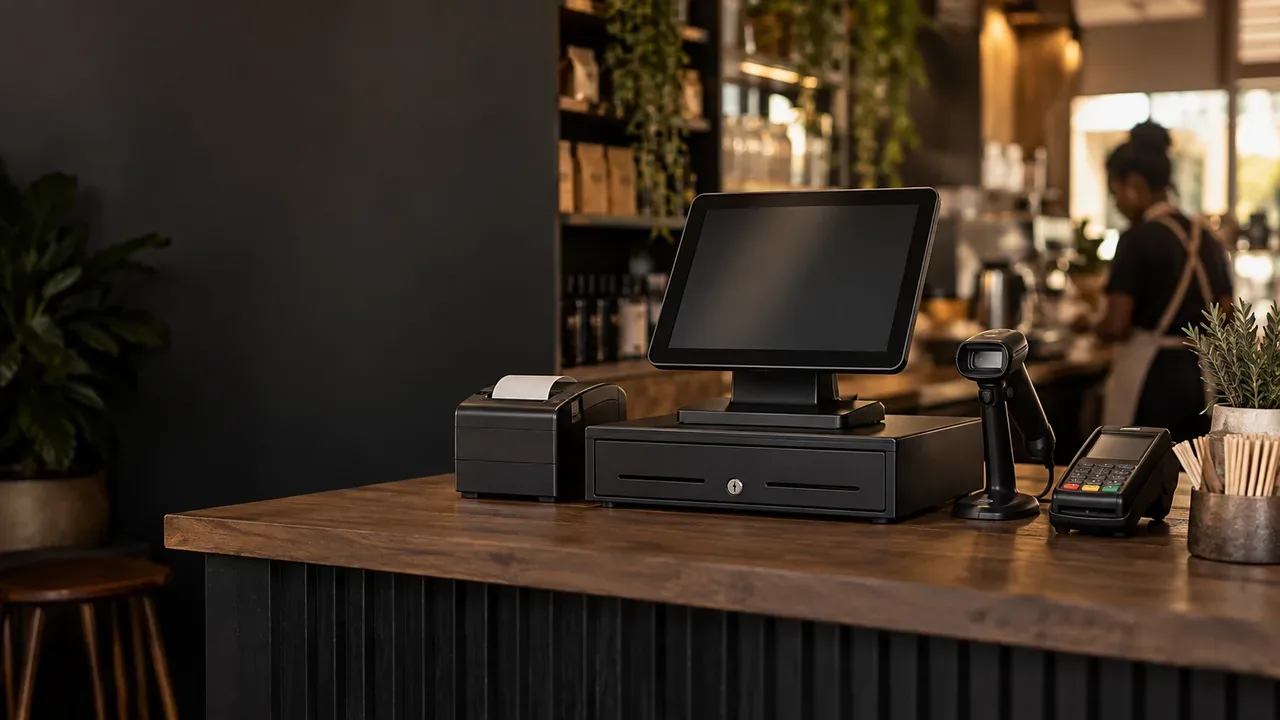
Use a fault-isolation sequence, not guesswork
To fix a POS system error, a technician should start with the reported symptom, check the simplest causes and test one change at a time. That sequence narrows the fault to the terminal, network, software, payment processor or connected peripheral without replacing parts unnecessarily.
- Confirm the failure. Reproduce the issue only when it is safe to do so, and check whether it occurs on every transaction or only with a particular task.
- Check the simplest causes. Inspect power, cables, plugs, network connections and peripheral status before opening the terminal or changing configuration.
- Compare affected devices. If other terminals work on the same network and processor, focus on the affected unit or its local connections. If several devices fail together, investigate shared services and network connectivity.
- Test a known-good component. Where safe and compatible, use a working cable, port or peripheral to see whether the fault follows the component or stays with the terminal.
- Record each result. Note what changed and whether the symptom improved. Restore the original setup if a swap does not isolate the cause.
Do not restart a terminal while a payment may still be processing. First check the transaction status through the approved POS or payment-processor workflow to reduce the risk of a duplicate charge or a missing transaction record.
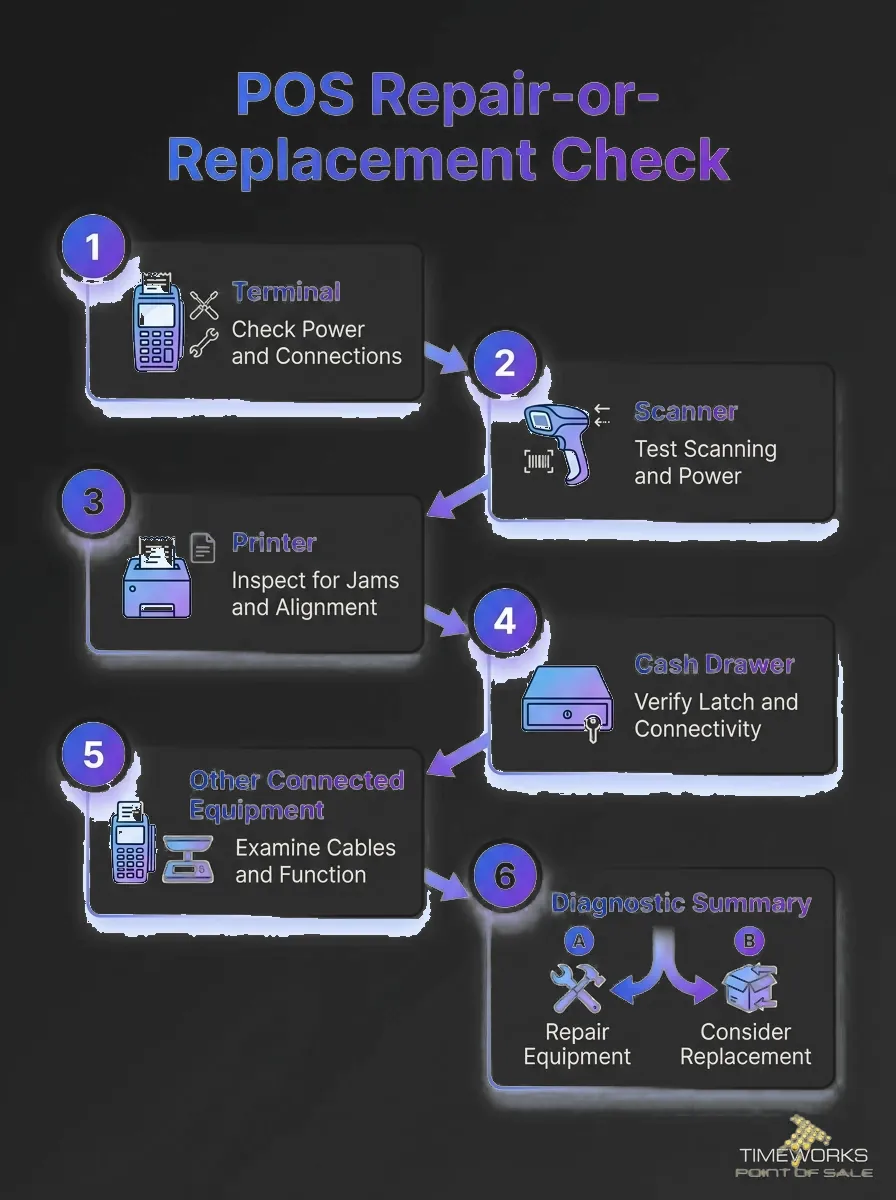
Check the power supply, touchscreen and terminal connections
A POS terminal that will not start or behaves unpredictably may have a power-path fault rather than a failed main unit. The technician should inspect the power supply, adapter, plug, socket, cables and connections, then look for loose, damaged or strained leads and test with a compatible known-good supply when appropriate.
Next, inspect the screen, touchscreen response and ports. Look for cracks, liquid ingress, dead areas, unresponsive touch zones, bent connectors or a port that works only when a cable is moved.
- Confirm that the outlet and power supply work, and check for a tripped switch or loose plug.
- Disconnect nonessential peripherals and start the terminal with only the required connections.
- Test touch response across the full display and check whether the image flickers, dims or disappears.
- Reconnect peripherals one at a time to identify a faulty cable, port or attached device.
Where the terminal itself is under assessment, compare repair options with a supported unit such as our touchscreen POS terminal. A technician should still establish that the old unit has a terminal fault before recommending replacement.
Separate network, software and firmware faults from hardware failure
When network connectivity is at fault, the same POS terminal may work normally after it reconnects. Check whether other tills can reach the network, whether the local connection is stable, and whether the payment processor or a shared service is reporting a problem.
If the network is stable, move to software diagnostics. Review startup errors, application logs, user permissions, configuration and recent software or firmware updates, then check whether the issue began immediately after a change.
- Check the terminal’s network connection and compare it with a working device on the same network.
- Confirm that the POS application starts correctly and that the terminal has the expected configuration.
- Check update status and vendor support for the operating system, POS software and firmware.
- Schedule updates outside active trading, follow approved backup procedures and keep a record of the previous configuration.
Security support is part of the repair-versus-replacement decision. If the operating system or POS software is no longer supported, a repair that restores basic operation may still leave the business with an unresolved security and compatibility problem.
For remote troubleshooting, a technician can inspect logs and settings when the terminal is powered on and connected. Physical damage, failed ports, liquid exposure or a fault that cannot be reproduced remotely calls for an onsite inspection.
Test the card reader, printer and other peripherals
A peripheral fault can look like a terminal failure, so test each connected device separately. Check the card reader, receipt printer, cash drawer, barcode scanner, customer display, kitchen display or scale for power, cable seating, correct port assignment and communication with the POS software.
For a printer issue, check paper direction, paper condition, connection type and printer status before replacing the device. Our 80mm thermal receipt printer is one example of a POS printer with USB, Ethernet and serial connections, so the technician should verify that the connection in use matches the configured port.
For a scanner that fails to read, test several known-good barcodes and check whether the scanner works in another compatible port or terminal. A Zebra LI2208 barcode scanner is shown below; compare the result with another scanner or a known-good cable to see whether the fault follows the device.
When a component swap is necessary, use a compatible test device and document the original cable position, port and configuration. Changing several components at once can hide the cause and introduce new setup errors.
Protect payment data during diagnostics and repair
Before remote access, component replacement or software work, the technician should preserve transaction records and limit access to what the job requires. Use approved backups and secure support tools, and do not copy, photograph or store cardholder data or payment credentials as part of troubleshooting.
- Check for pending transactions and follow the payment processor’s reconciliation process before taking equipment offline.
- Use secure, authorized remote access and end the session when diagnostics finish.
- Keep customer records and payment information out of photos, notes and ordinary support messages.
- Record replaced components and any configuration changes in the service history.
Staff should know how to continue trading without improvising unsafe workarounds. Use an approved backup terminal or lane, follow the business’s documented fallback process, and confirm how transactions will be reconciled before accepting payments through an alternative setup.
Choose repair or replacement based on the full cost of downtime
Repair is usually the sensible route when the fault is isolated, parts are available, the unit remains supported and the repair can restore reliable operation. Replacement becomes the stronger option when faults recur, repair parts cannot be sourced, the device is incompatible with required software or peripherals, or security support has ended.
One POS manufacturer puts the typical replacement cycle at 5 to 7 years: Shenzhen ZCS Technology Co., Ltd.. Use age as context, not as a substitute for checking the terminal’s condition, support status and operating requirements.
| Technician check | Points toward repair | Points toward replacement |
|---|---|---|
| Fault pattern | A single, reproducible problem with a repairable part. | Repeated failures or several unrelated hardware faults. |
| Parts and warranty | Parts are available and repair is covered or cost-effective under the applicable terms. | Parts are unavailable, or repair cost and downtime outweigh a compatible replacement. |
| Software and security | The terminal supports required software, firmware and security updates. | The platform has reached end of support or cannot meet current security needs. |
| Compatibility | Existing peripherals and payment workflows remain compatible after repair. | The terminal cannot support needed peripherals, integrations or business processes. |
| Operational impact | Repair can be completed without unacceptable disruption. | Repeat repairs or long lead times would keep affecting service. |
Choose the support method to match the fault. Remote assistance suits software, settings and some network issues; onsite repair is appropriate when a technician needs to inspect power, ports, cabling or physical damage; depot repair suits equipment that needs bench testing; and advanced exchange can reduce downtime when an eligible replacement unit is available.
Our hardware terms note that optional extended warranty and hardware maintenance agreements can cover parts and labour beyond the six-month CPA statutory period, for an agreed period and quoted separately.
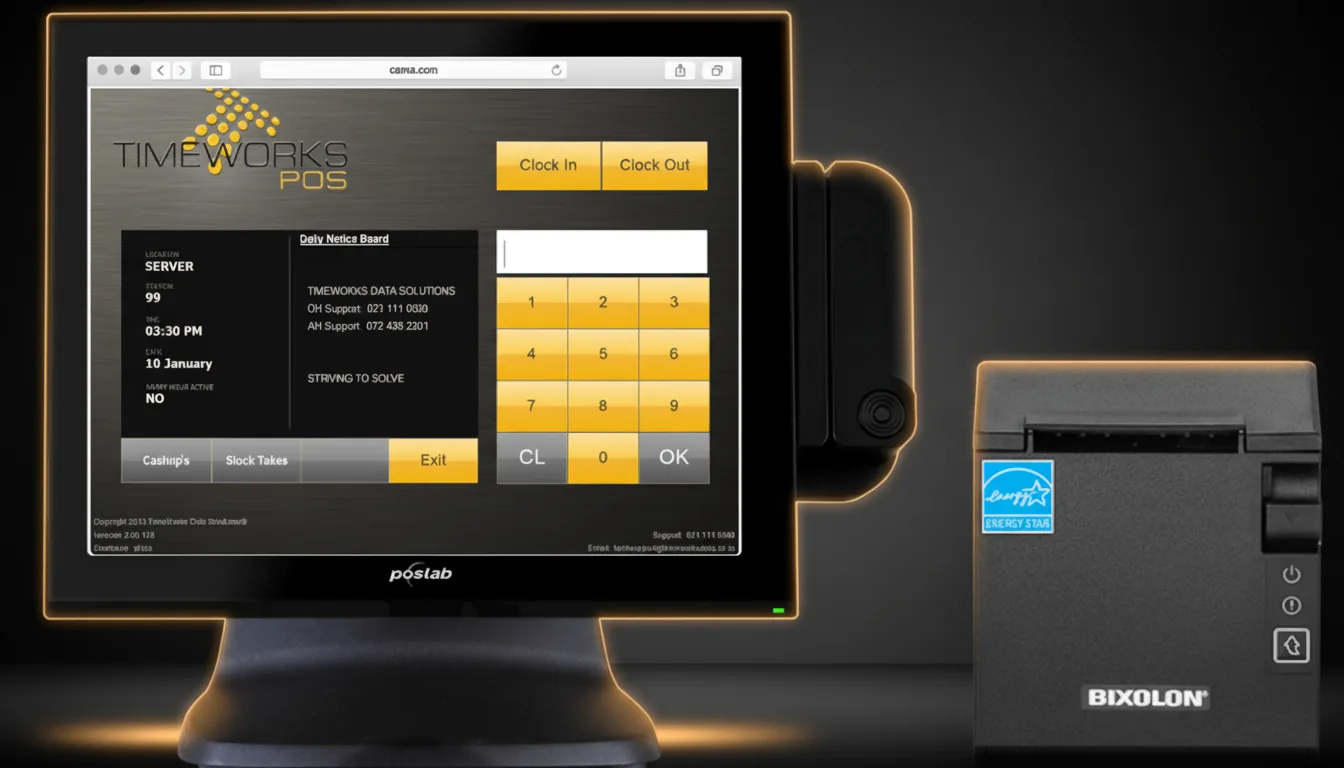
Validate the complete workflow and prevent repeat faults
Before returning a repaired POS terminal to service, test the full workflow rather than stopping when the error disappears. The technician should confirm that the POS application starts, network connectivity remains stable, the payment processor responds, and transaction records appear correctly.
- Run an approved payment test and verify the result in the POS and processor records.
- Test the card reader, touchscreen, printer, cash drawer and other peripherals connected to that station.
- Check that receipts, transaction totals and end-of-day records match the completed test.
- Confirm that the terminal stays connected during a practical operating period and does not repeat the original fault.
- Document the repair, replaced parts, settings changes and any follow-up maintenance required.
Preventive maintenance reduces avoidable repeat faults. Keep screens and equipment clean using suitable products, keep liquids away from ports, inspect cables for wear, clean printer mechanisms as recommended by the manufacturer, and schedule software and firmware updates outside trading hours.
Keep a record of repairs, recurring errors and equipment age for each station. That history helps us distinguish a one-off failure from a pattern that makes replacement the more reliable business decision.
Frequently Asked Questions
Yes, a repaired terminal can serve as a backup if it remains supported, secure and compatible with your current POS setup. Keep its software and configuration aligned with active terminals, and test it periodically so it is ready when needed.
Sometimes, but the technician must first check whether the display assembly is serviceable separately and whether the replacement part matches the terminal model. They should also test touch calibration and screen operation after the work.
Not automatically. The new terminal and POS software must support the processor’s approved integration and configuration, so involve the processor and POS provider before changing equipment.
Use it only if the fault does not affect payment security, transaction accuracy or reliable operation. If the terminal has unstable power, unexplained transaction results or possible physical damage, take it out of service and use an approved fallback.
Ask the technician to record the component and its serial or part number in the service history. Retain the part only through the business’s approved warranty, returns and disposal process, especially if it could contain stored business or customer information.
No. A printed receipt confirms only that part of the workflow worked; it does not prove that payment authorization, transaction records, the network and other connected devices are functioning correctly. Approve the terminal after the full payment and peripheral workflow passes.
Conclusion
A sound repair-or-replace decision starts with a documented symptom and a methodical sequence: inspect the power path, isolate network and software issues, test peripherals, protect payment data and validate the complete transaction flow.
Repair when the fault is contained and the terminal remains supported; replace when reliability, compatibility, security or parts availability make continued repair a poor operational choice. A careful diagnosis helps us protect both transaction continuity and the long-term value of your POS hardware.
Talk to a TimeWorks technician
Tell us what the till is doing and we will help you work out the next step, from a remote check to a site visit.